RISK & TRADE MANAGEMENT TOOL

Trade Manager for MT5 & MT4

MT5MT4

Risk management, trade execution and position management in one trading tool.

Prepare the trade on your chart, calculate its size from your risk settings and place the order. Then let Trade Manager apply your configured management rules, with fewer manual calculations and repeated order adjustments.

Buy on MQL5
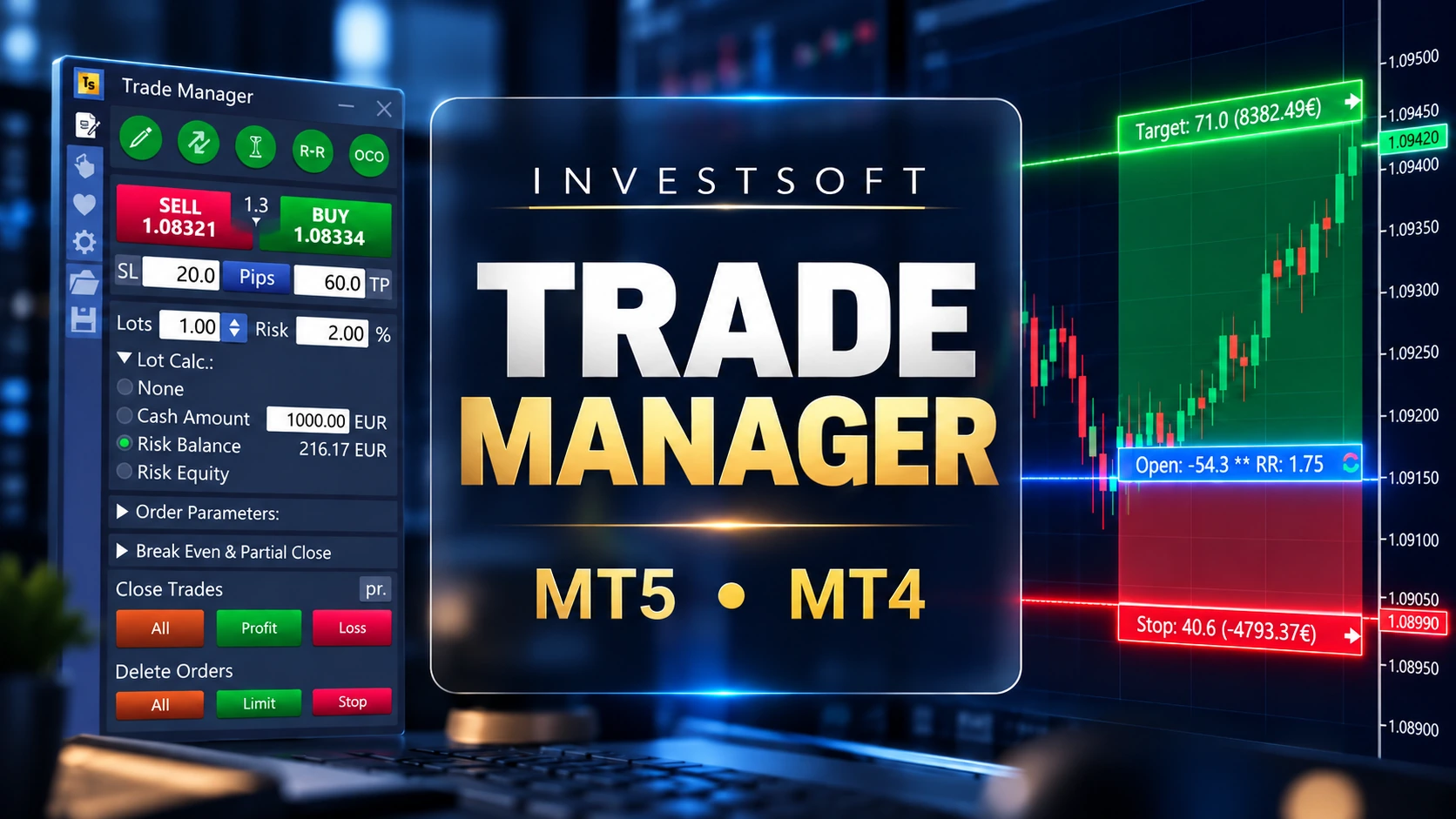
Trade Manager · Real product interface

THE PRODUCT

What is Trade Manager?

Trade Manager is an MT4 and MT5 risk and trade management tool that connects trade preparation, order execution and ongoing position management directly on the chart.

You choose the entry, risk and management rules. The panel calculates the position size, helps you submit the prepared order and monitors the conditions you have set for Break Even, trailing, partial closes and equity control. That keeps the stages of a trade together, from the initial plan to managing several open positions.

It runs inside the desktop MetaTrader terminal. Keep the computer or VPS running and connected whenever you rely on its automatic actions.

Trade Manager interface with trading chart, Target, Open and Stop levels

FROM PREPARATION TO POSITION CONTROL

Core capabilities

Five connected parts of the trading process, with the settings and actions visible on your chart.

CORE CAPABILITY / 01

Risk & Position Sizing

Start with Entry, Stop Loss and Take Profit lines on the chart. Trade Manager shows the planned risk and reward alongside those levels, so you can assess the relationship before sending the order.

Set the amount you intend to risk — as a percentage of balance or equity, or a fixed cash amount. The position size calculator uses that risk, the Stop Loss distance and the symbol specifications to calculate the lot size. Adjust a level and review the updated result, without transferring numbers to a separate calculator.

CORE CAPABILITY / 02

Trade Planning & Execution

Prepare the price levels, volume and order parameters together, then execute the trade from the same panel. The chart plan becomes the basis for the order instead of a set of values you need to retype in another window.

This is useful when you want to move quickly while still checking risk and protection levels. Review the prepared parameters before placing the trade, and use the on-chart controls to adjust an existing order when your plan changes.

CORE CAPABILITY / 03

Automatic Trade Management

Define how a position should be managed before or during the trade. Trade Manager monitors the conditions and sends the corresponding adjustments while the terminal remains running, reducing the need to watch for every trigger yourself.

Automatic Break Even
Set when Stop Loss should move to a break-even level, with an optional offset.
Trailing Stop
Choose the activation point and how the stop should follow the developing trade.
Partial Close
Specify levels and volumes for reducing a position in stages.
Automatic SL/TP Management
Apply configured protection and target distances to eligible externally opened trades.

CORE CAPABILITY / 04

Equity Protection

Manage the combined result of several positions, rather than relying only on the stop attached to each trade. Equity Protection can close the included positions when a profit, loss or equity threshold is reached.

Choose whether the rule applies to the current symbol or all symbols. This gives you an account-level control alongside individual trade management, especially when multiple positions are open at the same time. Configure and check the scope before enabling it; gaps, slippage and connection conditions can affect the closing result.

CORE CAPABILITY / 05

Mobile Trading Workflow

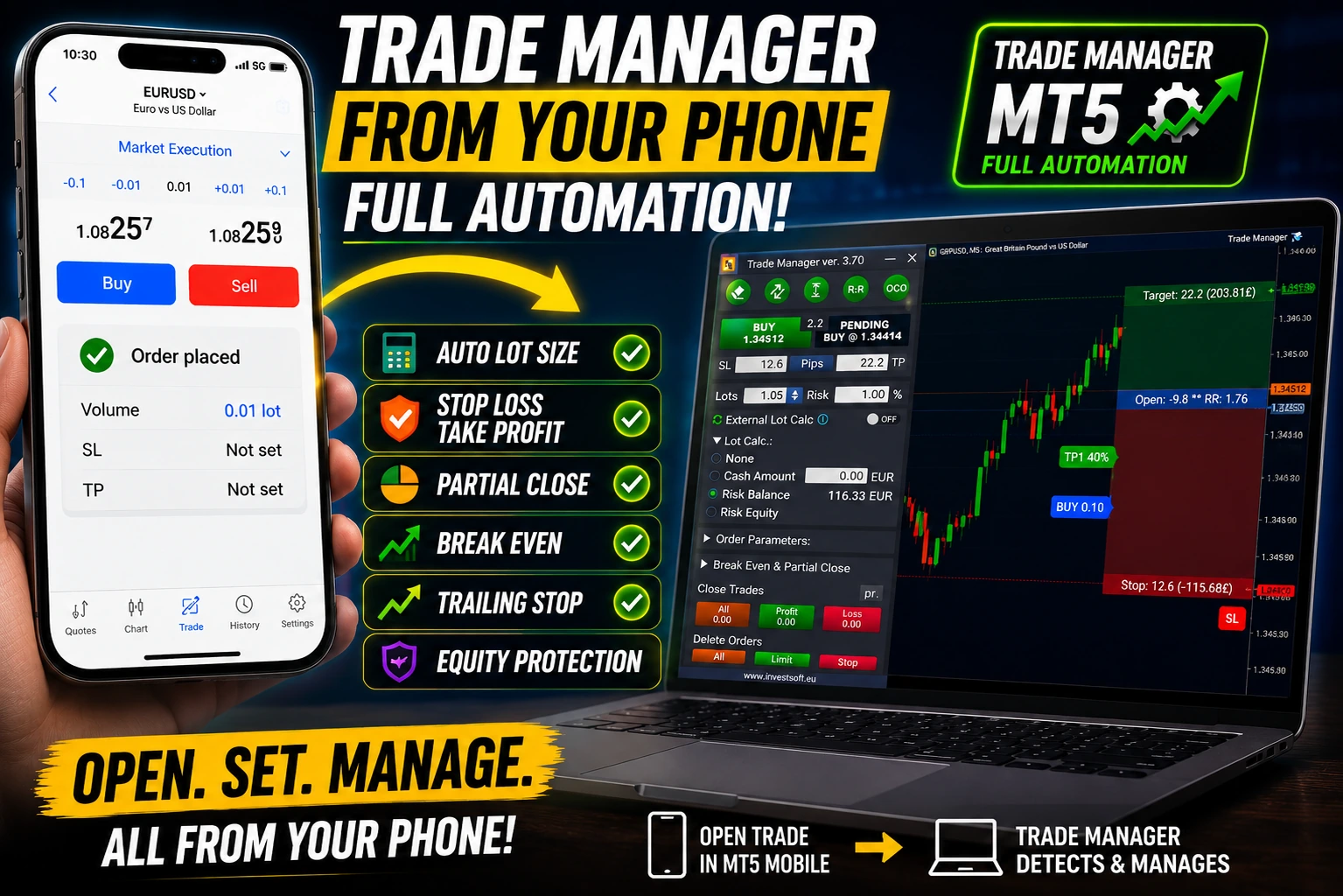
Place an order in MT5 Mobile. Run its risk and management automation in desktop MT5 or on a VPS.

The mobile app and desktop terminal connect to the same broker account. Trade Manager detects eligible external orders, reads their levels and applies the configured calculation and management rules. The software runs on the PC or VPS, not on the phone.

Enable External Lot Calc and select the risk mode and order types it should handle. Its Magic Number Filter must be disabled so mobile trades can be included. A usable Stop Loss is required for the risk calculation; it can come from the mobile order or your automatic SL settings.

  1. 01MT5 MobilePlace the order
  2. 02Broker accountThe same account
  3. 03Desktop / VPSKeep MT5 running
  4. 04Trade ManagerApply configured rules

For a market trade

For an eligible mobile trade, Trade Manager can apply your configured SL/TP and calculate the total volume from your Stop Loss and risk setting. To increase an open position, it can open an additional trade for the missing volume, then manage the included positions.

For a pending order

Place a small pending order with Entry and Stop Loss, and Take Profit if needed. Trade Manager can delete and recreate it at the calculated size while preserving the entry, protection levels, symbol and direction. This follows the external-order settings in the current product.

Read the external lot-calculation setup
MT5 Mobile order entry with Trade Manager position sizing and automated trade management

MATCH THE TOOL TO YOUR WORKFLOW

Who is Trade Manager for?

Manual Traders
Bring chart planning, risk calculation and order placement together while keeping the entry decision with you.
Active & Day Traders
Prepare and adjust orders without repeatedly copying levels and calculating volume by hand.
Prop Firm & Funded Traders
Use pre-trade risk control, position sizing and equity monitoring as part of a disciplined process. Configure the tool around your firm’s rules; it does not interpret or guarantee compliance with challenge conditions.
Mobile Traders
Keep the flexibility of MT5 Mobile while a desktop terminal or VPS applies your configured risk and management rules.
Traders Managing Multiple Positions
Combine individual position management with controls for groups of trades and their overall result.
Traders Using Pending Orders
Prepare pending entries on the chart and use advanced order tools where they fit your execution process.

ONE CONNECTED PROCESS

How it works

  1. 01

    Plan

    Set Entry, SL and TP.

  2. 02

    Set Risk

    Choose your risk basis.

  3. 03

    Size

    Review the calculated lots.

  4. 04

    Execute

    Place the prepared order.

  5. 05

    Manage

    Apply your management rules.

  6. 06

    Protect

    Monitor combined exposure.

Each stage uses the settings you choose. Automatic management requires the terminal or VPS to remain running and connected.

IN PRACTICE

Trade Manager in real trading workflows

01

Standard market trade

You define the planned Entry, Stop Loss and Take Profit on the chart and choose how much you want to risk.

Trade Manager calculates the position size from your risk settings and Stop Loss distance, so you can review the setup before placing the order.

After the position is opened, Trade Manager can apply the management rules you configured, including Break Even, Trailing Stop and Partial Close.

02

Pending order

You set the planned Entry, Stop Loss and Take Profit directly on the chart and choose the risk for the trade.

Trade Manager calculates the required volume and places the pending order with the prepared parameters.

If you use Virtual Pending or Trailing Pending, Trade Manager can continue monitoring the setup and trigger the order when the configured conditions are met, while the terminal is running.

03

Mobile trade, desktop management

You open a small Buy or Sell position from MT5 Mobile on an account also running Trade Manager on your desktop or VPS.

With External Lot Calculation enabled, Trade Manager can read the Stop Loss, calculate the target position size from your selected risk and open the additional volume needed to reach that size.

The resulting position can then be managed using the configured Break Even, Trailing Stop, Partial Close and other management rules.

04

Mobile pending order

You place a small pending order from MT5 Mobile with the Entry and Stop Loss already defined.

Trade Manager can calculate the correct position size from your risk settings, remove the original pending order and recreate it with the calculated volume while preserving the planned levels and direction.

This lets you prepare the trade from mobile while the desktop terminal or VPS handles the position sizing and further management.

DETAILS WHEN YOU NEED THEM

More Trade Manager features

The main workflow has additional controls for how orders are placed, managed and included in automation. Expand a group to see the available options.

Trade Management
Multi-level Break Even
Configure successive activation levels and stop adjustments. Manual Single BE and Common BE controls are available separately.
Common Break Even
Calculate and display a shared break-even level for a group of trades, then use Move SL to BE in Common mode. Mixed Buy/Sell exposure can be shown as a zone because of the spread.
Advanced Trailing Stop
Choose multi-level trailing, highs/lows, Moving Average, Parabolic SAR, ATR or trailing linked to partial-closing levels.
Partial profit and loss closing
Set staged closing levels, define the amount in lots or percentages and use the manual partial-close controls when needed.
SL/TP distances and order controls
Use configured distances, including ATR-based levels, adjust an individual trade from its information bar, and close selected trade groups.
Common BE · Actual controls from the user manual
Order & Execution Tools
Market and pending execution
Use panel Buy/Sell controls or prepare an order with chart lines and order parameters.
Virtual and Trailing Pending Orders
Monitor a local trigger or let a pending entry follow price under your configured conditions. The terminal must stay running.
Limit Pullback Orders
Use the documented pullback-order workflow when you need this specific entry behaviour. Review the manual before enabling it.
Linked and grouped order actions
OCO cancels a linked alternative when its condition is met. Group controls can close trades or delete pending orders by category.
Faster repeatable setup
Use keyboard shortcuts, comments, alerts and saved settings templates. MT5 also offers asynchronous fast closing.
Protection & Control
Hidden SL/TP
Keep configured stop/target levels in Trade Manager instead of sending them as broker-held SL/TP. The connected terminal monitors them and submits a closing action when triggered.
Equity thresholds
Define profit/loss thresholds as account currency, a percentage of balance or an absolute equity level (EQL).
Scope and filters
Choose current symbol or all symbols, control pending-order deletion and use Magic Number filtering to define which trades the tool can manage.
Risk and cost controls
Review acceptable-risk settings, commission inclusion, spread handling and broker volume limits in your calculation setup.
Chart and panel configuration
Adjust displayed units, labels, colours, zoom and the placement of on-chart information to make the controls readable.
Advanced Position Handling
External Lot Calculation
Calculate the target size for eligible external market and pending orders using Risk Balance, Risk Equity or Cash Amount. Choose all orders, market only or pending only.
Adding missing market volume
Complete a smaller external trade with an additional trade in the same direction, rather than rewriting the volume of the existing position.
Recreating pending orders
Replace an external pending order with a correctly sized order while retaining its configured levels, symbol and direction.
Larger order volumes
The Unlimited Lot workflow divides a requested volume into orders when it exceeds the broker’s per-order limit. It does not remove account or margin limits.
MT5 custom charts
The MT5 version supports custom chart symbols, including documented Renko and other non-standard chart workflows.

Explore the complete user manual

EXTEND YOUR SETUP

Add-ons

Extend Trade Manager with optional add-ons for specialized trading workflows, directly on your chart.

Grid Module

When your workflow involves several pending levels, Grid Module adds visual grid planning and sizing to Trade Manager. It requires the parent product on the same chart.

Learn more about Grid Module

INSTALL, CONFIGURE, TEST

Getting started

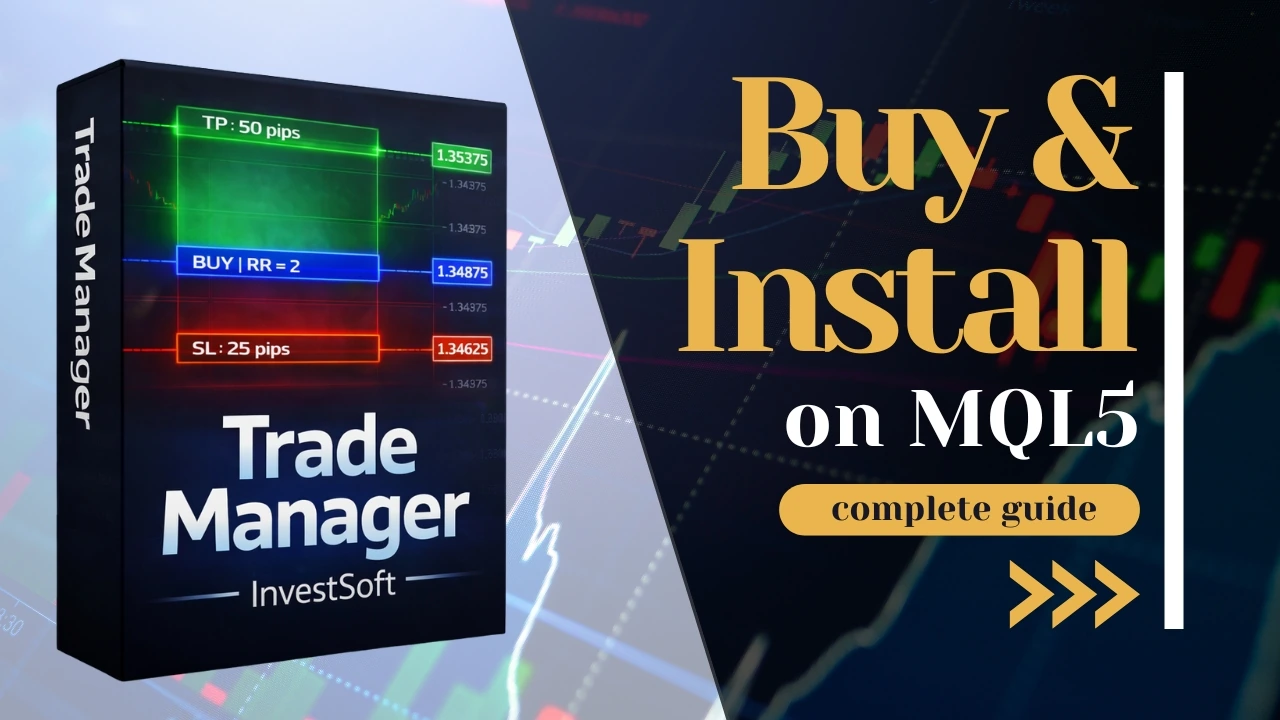
Buy and install through MQL5

Choose MT5 or MT4 and the license duration, then purchase through the matching MQL5 product listing. Sign into the same MQL5 account inside your desktop terminal and install the product from the Market’s purchased-products area. Attach it to a chart and follow the setup instructions, including enabling the required trading permissions.

Buy directly from InvestSoft

Select your platform and license in the pricing section, then use the direct-purchase option to continue to the InvestSoft cart. This route uses InvestSoft’s broker-account licensing system. Follow the download and activation instructions supplied with your direct order.

Set up your first workflow

Review the manual, configure risk and management settings, and test them on a demo account before relying on automation. For installation or configuration help, contact support with your product version and platform.

Trade Manager purchase and installation guide on MQL5

TRADE MANAGER · CUSTOMER EXPERIENCES

What Trade Manager users say.

1,266 reviews on MQL5

760 for MT5 · 506 for MT4. Verified 28 September 2026. Available on MQL5 since 2019.

“Great tool for scalping.”
airwolf59 · MT5
“excellent after sales service and support.”
Dan 20838 · MT5
“It's quite simple to set up and use.”
This.Is.Akan · MT5
“outstanding customer service”
Jay Smith · MT4
“support is always there if needed.”
paulstrong23 · MT4
“The product receives continuous updates”
TsepoNtilane · MT4

Selected excerpts from individual reviews. Experiences vary.

CHOOSE YOUR PLATFORM & LICENSE

Pricing & License Options

Lifetime

Lifetime license

$99 USD

Choose your platform

Rent

3 Months

$30 USD

Choose your platform

Compare license options

How does the MQL5 license work?

Trade Manager currently includes 10 hardware/operating-system activations. These are installations on distinct hardware and OS configurations, not a limit on broker accounts. Reinstalling an operating system or changing hardware can require another activation. After all activations are used, another license is needed for a new activation.

Read the current MQL5 Market rules
How does a direct InvestSoft license work?

The license is stored in the InvestSoft database and activated by broker account. You can have up to five active broker accounts at a time. Deactivate an older account to reuse its slot. PayPal is available in the InvestSoft Store. MT4 and MT5 require separate licenses.

QUESTIONS & ANSWERS

Frequently asked questions

Does Trade Manager calculate position size automatically?

Yes. Trade Manager calculates lot size from your chosen risk, the Entry and Stop Loss levels, and the instrument specifications supplied by your broker. Choose a percentage of balance, a percentage of equity or a fixed cash amount. Moving the planned Stop Loss updates the calculation, so you can review the volume before placing the order. See the position sizing explanation

How does automatic Break Even work?

Automatic Break Even moves Stop Loss when a trade reaches the activation condition you set. You choose the trigger and any offset from the break-even level; multi-level settings allow further adjustments at later stages. The terminal or VPS must stay running for Trade Manager to monitor and apply these rules.

Which Trailing Stop methods can I use?

Trade Manager supports distance-based trailing as well as methods based on highs and lows, a moving average, Parabolic SAR and ATR. You configure when trailing starts and how the stop follows price. Multi-level settings and trailing linked to partial-closing levels provide additional control; use the manual to choose and test the settings for your workflow.

Can Trade Manager partially close a position?

Yes. You can configure partial closes at predefined levels and specify the volume to close in lots or percentages. Trade Manager monitors the conditions and sends the closing actions when they are reached. Broker minimum volume and lot-step requirements still apply.

Can it manage trades opened in MT5 Mobile?

Yes. Keep Trade Manager running in desktop MT5 on your computer or a VPS, connected to the same account as MT5 Mobile. The Mobile Orders section explains how to set up External Lot Calc and what happens to market and pending orders.

How does Equity Protection work across positions?

Equity Protection can close eligible positions when the combined result or equity reaches a configured threshold. Choose the current symbol or all symbols, then set the included trades and any pending-order handling. Currency amounts, percentages of balance and absolute equity levels provide different ways to define the threshold; execution conditions can affect the final result.

Does it support pending orders as well as market trades?

Yes. Trade Manager supports market execution and pending-order preparation from the chart. Virtual Pending Orders and Trailing Pending Orders add local trigger and entry-adjustment workflows. These locally managed functions require the terminal to remain running and connected.

Can it manage trades opened outside its own panel?

Yes. Orders placed in a mobile app or another terminal on the same account can be included if your Trade Manager settings allow it. To calculate size for those orders, use External Lot Calc with the Magic Number Filter disabled.

Do I need a VPS to use Trade Manager?

A VPS is optional if your computer can keep MetaTrader and Trade Manager running whenever automation is needed. A VPS provides another place to run that desktop terminal while your own computer is off. Broker-held orders and local automation have different requirements, so do not expect Break Even, trailing or hidden levels to keep being monitored by a closed terminal.

Can funded and prop-firm traders use it?

Trade Manager can support pre-trade risk control, consistent position sizing and management of combined exposure. You configure the rules around your own account requirements. It does not automatically interpret a firm’s daily-loss, drawdown or challenge rules, and it cannot guarantee compliance or a successful challenge.

Which markets can I calculate risk for?

Trade Manager uses the symbol specifications available in MetaTrader to calculate risk and volume. The MT5 product supports broker-provided Forex, metals, indices, commodities, cryptocurrency CFDs and futures. Review the displayed values and broker volume limits for each instrument; costs, gaps and slippage can make the actual loss differ from the planned risk.

Does Trade Manager work with both MT4 and MT5?

Yes. Trade Manager has separate MT4 and MT5 versions, and each requires its own license. Choose the version that matches your desktop terminal before purchasing or requesting the 7-day trial. Some advanced features, including custom-chart support and asynchronous fast closing, are specific to MT5.

TRY IT IN YOUR OWN WORKFLOW

Start with a 7-day Trade Manager trial.

Choose MT5 or MT4 and send a trial request. Support will email the trial version and instructions so you can explore the controls and configure the workflow.

Request a Free Trial

Products

Platforms

Buy Grid Module

Grid Module: $80 · Subtotal: $80 USD

MT4 and MT5 are separate licenses. The two-product option uses normal prices, with no bundle discount. Applicable taxes are calculated in the store.